
Settings & Customization
Customize Chimr, from launch-at-login to notification timing and menu bar behavior.
Chimr offers extensive customization options to perfectly match your workflow, from basic preferences to advanced notification controls.
General Settings
Launch at Login
Automatically start Chimr when you log into macOS with these options.
- Enabled: Chimr starts with your system
- Disabled: Launch manually when needed
- Managed through macOS Login Items
- Recommended for daily calendar users
Language
Choose your preferred interface language from these options.
- System Default: Follows macOS language
- English: Force English interface
- Japanese (日本語): Force Japanese interface
- Changes apply immediately
Menu Bar Display
Customize how Chimr appears in your menu bar with these three modes.
Event Info (Default)
🔔 Team Standup - In 5 min
🔔 LIVE - Quarterly Review
🔔 Free day ☀️- Shows event title and time
- Maximum information density
- Best for schedule awareness
Icon Only
🔔- Minimalist appearance
- Click to reveal calendar
- Perfect for clean menu bars
- Reduces visual clutter
Time Only
🔔 In 15 min- Shows only the countdown to your next event
- Keeps the menu bar compact while staying time-aware
- Ideal when titles are sensitive or distracting
Calendar Configuration
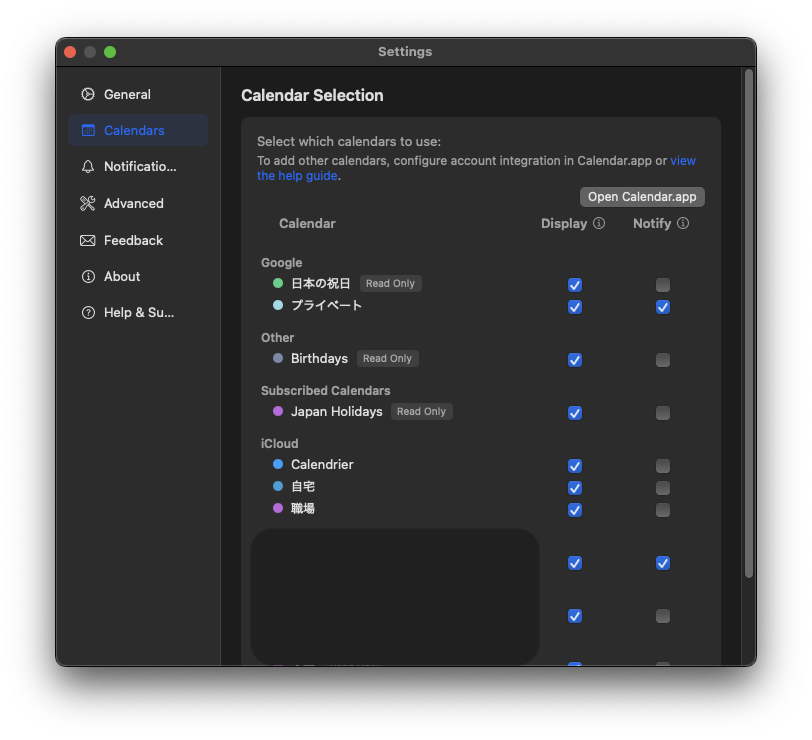
Display Calendars
Select which calendars appear in Chimr using these controls.
- Toggle individual calendars on/off
- See all events from selected calendars
- Maintain organization with calendar colors
- Changes apply instantly
Notification Calendars
Separately control which calendars trigger alerts with these benefits.
- Different from display - See more than you’re alerted about
- Reduce interruptions - Only important calendars notify
- Work/life balance - Disable personal alerts during work
- Fine control - Per-calendar notification settings
Calendar Management Tips
- Name calendars descriptively
- Use consistent color coding
- Group related calendars
- Review permissions regularly
Notification Preferences
Notification Timing
Set advance warning for events with these timing options.
- Disabled: Turn off notifications
- 1 minute: Last-second reminders (default)
- 3 minutes: Quick preparation
- 5 minutes: Standard warning
- 10 minutes: Ample prep time
- 15 minutes: Maximum advance notice
Attendance Filter
Control notifications based on your response using these filters.
Not Declined (Default)
- Everything except events you explicitly declined
- Passive event management
- Sensible balance for most calendars
Accepted Only
- Only confirmed events notify
- Reduces notification noise
- Perfect for busy schedules
Accepted & Tentative
- Confirmed and “maybe” events
- Balances awareness and focus
- Good for flexible schedules
All Events
- Every calendar event triggers alerts
- Maximum awareness
- Best for open calendars
All-Day Events
Configure notifications for full-day events with these settings.
- Enable/Disable notifications
- Uses your configured notification timing, measured from the start of the day
- Perfect for birthdays, holidays
Video Conference Only
Filter notifications to virtual meetings with these features.
- When enabled: Only video meetings alert
- Smart detection: Finds meeting URLs
- Remote work mode: Ignore in-person events
- Platform agnostic: All video services
Snooze Options
Flexible postponement when notified with these durations.
- 1 minute: Final moment delay
- 3 minutes: Quick task wrap-up
- 5 minutes: Standard snooze
- 10 minutes: Extended delay
- 15 minutes: Maximum postponement
- Snooze multiple times if needed
Test Notification
The Notifications settings include a Test Notification button that fires a sample “Test Meeting” alert right away, so you can confirm your setup without waiting for a real event. It shows the floating card, and if “Also send to Notification Center” is on, it posts a matching system notification too.
Notification Sound
- Volume: A slider sets the playback volume from 0 to 100 percent
- Preview: The Preview button plays the current sound at your chosen volume
- Current sound: Chimr ships with a single alert sound, and per-sound selection is marked as coming soon
- Sound effects by OtoLogic
Advanced Settings
Event Display Options
Time Format
- Relative times: “In 5 min”, “Starting now”
- Absolute times: “2:30 PM”, “14:30”
- Smart switching: Context-aware display
Event Title Length
- Full titles: Complete event names
- Smart truncation: Intelligent shortening
- Priority info: Key details preserved
Sync Behavior
Chimr keeps your view current on fixed intervals that require no configuration.
- Notification checks: every 30 seconds
- Event refresh: every 5 minutes
- Both intervals are fixed and cannot be changed in settings
Privacy Settings
Event Details
- Show/hide in menu bar
- Truncate sensitive titles
- Icon-only for privacy
Notification Content
- Full event details
- Title only
- Generic alerts
Keyboard Shortcuts
Global Shortcuts
- ⌘, - Open Settings
- ⌘Q - Quit Chimr
- ⌘R - Refresh calendars (coming)
In-App Navigation
- ↑↓ - Navigate events
- Space - View event details
- Enter - Join video meeting
- Escape - Close windows
Preset Configurations
Remote Worker
Launch at Login: Yes
Menu Bar: Full Display
Display Calendars: Work only
Notification Calendars: Work only
Timing: 5 minutes
Filter: Video Conference Only
All-Day Events: Disabled
Hybrid Professional
Launch at Login: Yes
Menu Bar: Full Display
Display Calendars: All
Notification Calendars: Work + Important Personal
Timing: 10 minutes
Filter: Accepted & Tentative
All-Day Events: Enabled
Executive Assistant
Launch at Login: Yes
Menu Bar: Full Display
Display Calendars: All managed calendars
Notification Calendars: Principal's calendar
Timing: 15 minutes
Filter: All Events
All-Day Events: Enabled
Focus Mode User
Launch at Login: No
Menu Bar: Icon Only
Display Calendars: Work only
Notification Calendars: Critical only
Timing: 1 minute
Filter: Accepted Only
All-Day Events: Disabled