Advanced Notification Features
Use snooze and other advanced notification controls to fit your workflow.
Chimr goes beyond basic alerts with intelligent notification management that adapts to your workflow and ensures you’re only interrupted when it truly matters.
Snooze Functionality
Never be caught off-guard again with Chimr’s flexible snooze system.
How Snooze Works
When a notification appears, you can snooze it for a custom duration using this process.
- Click the Snooze button on the floating notification card
- Choose from preset intervals available.
- 1 minute (final moment delay)
- 3 minutes (quick wrap-up)
- 5 minutes (standard snooze - default)
- 10 minutes (extended time)
- 15 minutes (maximum snooze)
- The notification will reappear after your selected interval
Persistent Snooze Tracking
- Survives app restarts - If you quit and relaunch Chimr, snoozed notifications remain tracked
- Multiple snoozes - Snooze the same event multiple times if needed
- Smart timing - Snooze intervals are calculated from the current time, not the original notification time
Attendance-Based Filtering
Chimr respects your calendar decisions by filtering notifications based on your attendance status.
Notification Preferences
Configure which events trigger notifications in Settings using these options.
- All Events - Get notified for every calendar event
- Accepted Only - Only events you’ve explicitly accepted
- Accepted & Tentative - Events you’ve accepted or marked as maybe
- Not Declined - Everything except events you’ve declined
Use Cases
- Busy professionals: Set to “Accepted Only” to focus on confirmed commitments
- Team coordinators: Use “Accepted & Tentative” to track potential meetings
- Open calendar users: “Not Declined” keeps you aware of all possibilities
Smart Notification Timing
Chimr’s intelligent notification system prevents alert fatigue while ensuring you never miss important events.
Duplicate Prevention
- Each event is marked as “notified” after the first alert
- Prevents multiple notifications for the same event
- Resets if you modify the event or change notification settings
Edge Case Handling
- Overlapping events: Each event gets its own notification
- Back-to-back meetings: Notifications respect your configured timing
- All-day events: Optional notifications at your preferred morning time
- Past events: No notifications for events that have already started
Video Conference Filtering
Focus on virtual meetings with video-conference-only mode.
How It Works
When enabled in Settings, these behaviors apply.
- Only events with detected video meeting links trigger notifications
- Supports Zoom, Google Meet, Microsoft Teams, and Webex
- Perfect for remote workers who primarily attend virtual meetings
Detection Intelligence
Chimr scans event details for video meeting URLs with this process.
- Checks event location field
- Parses event description/notes
- Recognizes common meeting URL patterns
- Works with calendar invites from any source
Time-Based All-Day Detection
Some calendars, most often Google Calendar synced through macOS, deliver an event that runs the whole day without flagging it as all-day. When that happens, your “All-Day Events” notification preference cannot catch it, because macOS still reports the event as time-based.
Settings → Advanced → Event Detection includes a “Detect time-based all-day events” switch, on by default, to work around this. When it is on, Chimr treats an event as all-day whenever it starts at exactly 00:00:00, ends at exactly 00:00:00, and spans at least a full day, even if macOS did not mark it that way. Events matched this way then follow your all-day notification preference, so turning off all-day notifications also silences them.
Turn the switch off to fall back to the exact all-day flag that macOS reports and skip this midnight-to-midnight inference.
Notification State Management
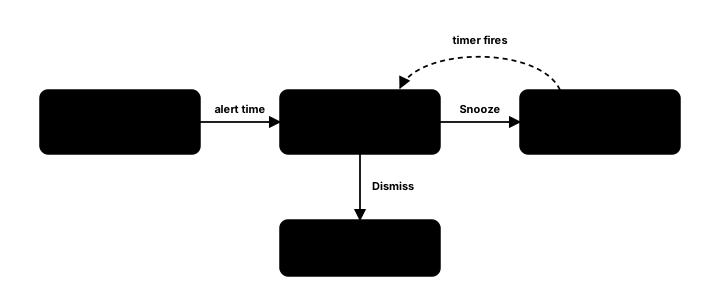
Event Notification Status
Each event maintains its notification state according to these rules.
- Pending: Not yet notified
- Notified: Alert has been shown
- Snoozed: Temporarily postponed with active timer
- Dismissed: User actively dismissed the notification
State Persistence
- Stored in app memory during runtime
- Snooze timers persist across app launches
- Notification history clears on app quit (except snoozes)
- Fresh start each day for reliable notifications
Best Practices
Optimize Your Notification Experience
- Start with “Accepted Only” - Reduce noise by focusing on confirmed events
- Use snooze wisely - 5-minute snooze for quick prep, 10-15 for longer tasks
- Enable video-only for remote work - Perfect for WFH professionals
- Combine with notification timing - Set 10-minute alerts with 5-minute snooze option