
MCP Server Integration
Connect Chimr's built-in MCP server so AI assistants like Claude can query your schedule and open meetings.
Chimr includes a built-in Model Context Protocol (MCP) server with 6 tools that lets AI assistants like Claude Desktop and Claude Code interact with your calendar. With it, Claude can query your schedule and open your video meetings.
What is MCP?
The Model Context Protocol is a standard that allows AI assistants to interact with external tools and services. Chimr’s MCP server acts as a bridge between Claude and your macOS calendar, running entirely locally on your machine.
How it works
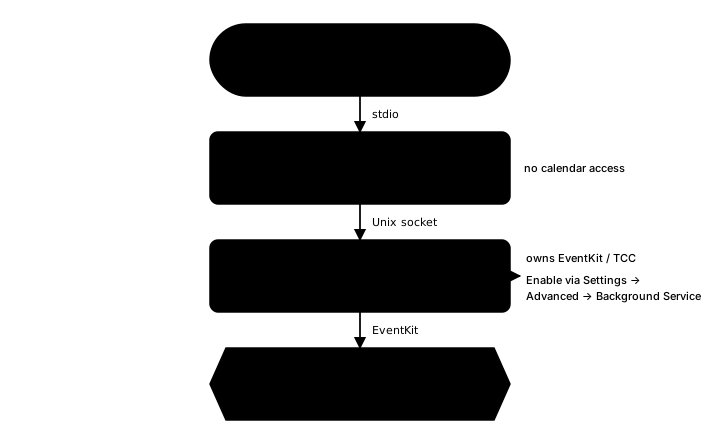
Under the hood, Chimr splits this into two processes. The --mcp command your MCP host launches is a lightweight forwarder that never touches your calendar. It relays requests over a local Unix socket to the Background Service daemon (--daemon), which holds calendar access and reads events through macOS EventKit. Because of this split, you must enable the Background Service before MCP can return any data.
Setup
1. Enable the Background Service
Open Chimr → Settings → Advanced and turn on “Enable Background Service”. This starts the daemon that actually reads your calendar. Without it, every MCP request fails with:
Chimr’s Background Service isn’t running. Open Chimr > Settings > Advanced and enable “Background Service”, then try again.
The first time you enable it, macOS may ask you to approve Chimr in System Settings → General → Login Items & Extensions. Once approved, the service starts automatically and keeps running in the background.
2. Register with your AI agent
Add the following to your MCP configuration file.
For Claude Desktop (~/Library/Application Support/Claude/claude_desktop_config.json):
{
  "mcpServers": {
    "chimr": {
      "command": "/Applications/Chimr.app/Contents/MacOS/Chimr",
      "args": ["--mcp"]
    }
  }
}
For Claude Code (~/.claude/settings.json):
{
  "mcpServers": {
    "chimr": {
      "command": "/Applications/Chimr.app/Contents/MacOS/Chimr",
      "args": ["--mcp"]
    }
  }
}
Note:
Unlike previous versions, the new MCP implementation runs directly from the Chimr application binary. No Python, uv, or additional dependencies are needed.
3. Restart your AI agent
Restart Claude Desktop or Claude Code to load the new tool definitions.
Available tools
The MCP server provides 6 tools that Claude can use.
| Tool | Description | Key parameters |
|---|---|---|
chimr_ping |
Health check that verifies the MCP server is running. Returns “pong” with the current timestamp. | — |
chimr_get_today_events |
Returns today’s events with times, titles, locations, and video links. Output respects your privacy level. | — |
chimr_get_events |
Returns events for a specific date. | date (YYYY-MM-DD) |
chimr_get_events_range |
Returns events across a date range, grouped by date, with summary statistics (total events, days with events, total days span). | start_date, end_date (YYYY-MM-DD) |
chimr_join_video_meeting |
Opens the video meeting for an event. Supports Zoom, Google Meet, Microsoft Teams, and Webex. | event_id (from chimr_get_today_events) |
chimr_show_notification |
Displays a floating notification card in Chimr. Not yet functional (see note below). | message (required), sender (required), title (optional), duration (optional, default 30) |
Not yet functional.
chimr_show_notificationis registered and visible to your MCP host, but its handler currently returns a “not implemented” error in every process mode. AI-triggered notifications are on the roadmap; until then, calling this tool will fail.
Privacy settings
Chimr lets you control exactly what information is shared with AI assistants during MCP integration.
Privacy levels
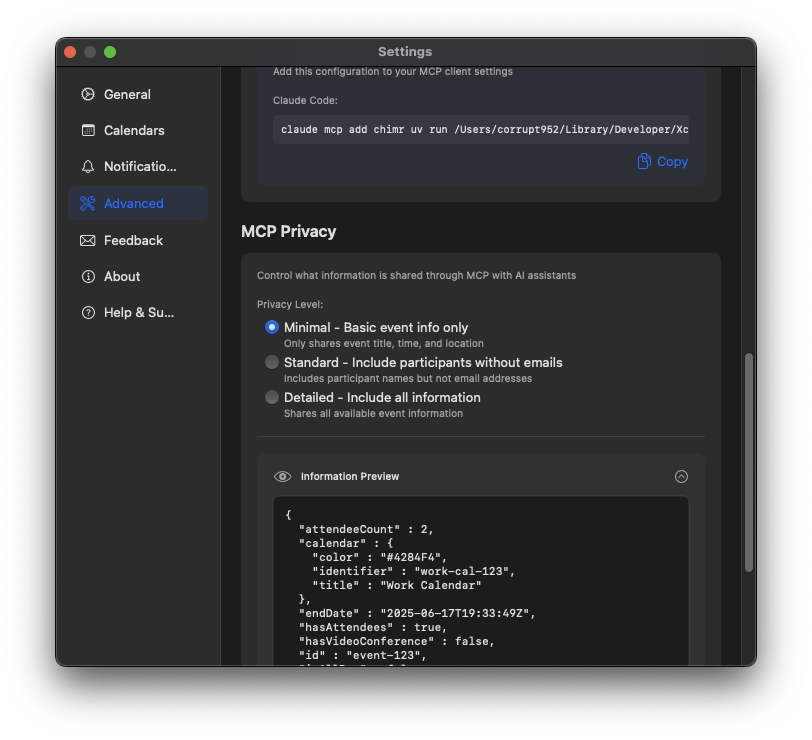
Navigate to Settings → Advanced → MCP Privacy to configure your privacy preferences:
-
Strict - Maximum privacy protection
- Only shares time slots and event status (upcoming / ongoing / completed)
- Event titles are replaced with “[Event]”
- No calendar, location, attendee, or other details
- Designed for users who need absolute privacy
-
Minimal (Default), Standard, and Detailed
- Share event title, time, and event status
- Calendar name and location
- Number of attendees (but never their names)
- Video meeting indicator (but never the actual URL)
What each level shares
The calendar tools (chimr_get_today_events, chimr_get_events, and chimr_get_events_range) build their response from the selected privacy level. In the current version, the Minimal, Standard, and Detailed levels return the same fields — only Strict reduces what is shared:
| Field | Strict | Minimal / Standard / Detailed |
|---|---|---|
| Time & event status | ✅ | ✅ |
| Event title | — (shown as “[Event]”) | ✅ |
| Calendar & location | — | ✅ |
| Attendee count | — | ✅ |
| Video conference indicator | — | ✅ |
| Attendee names | — | — |
| Attendee email addresses | — | — |
| Video conference URL | — | — |
| Event notes / description | — | — |
Attendee names, email addresses, video conference URLs, and event notes are never included in the data sent to MCP clients.
Settings only, not yet reflected in output. When you pick the Standard or Detailed level, the settings screen shows a “Custom Information Sharing” group with switches for attendee names, attendee email addresses, video conference URLs, event notes, and organizer information. Chimr stores these choices, but the calendar tools do not read them when they build a response, so turning one on does not add its field to what MCP clients receive. As the table above shows, attendee names, email addresses, video conference URLs, and event notes stay out of the shared data no matter how these switches are set. This works like the
chimr_show_notificationtool that is present in the UI but not yet wired into the output.
Preview
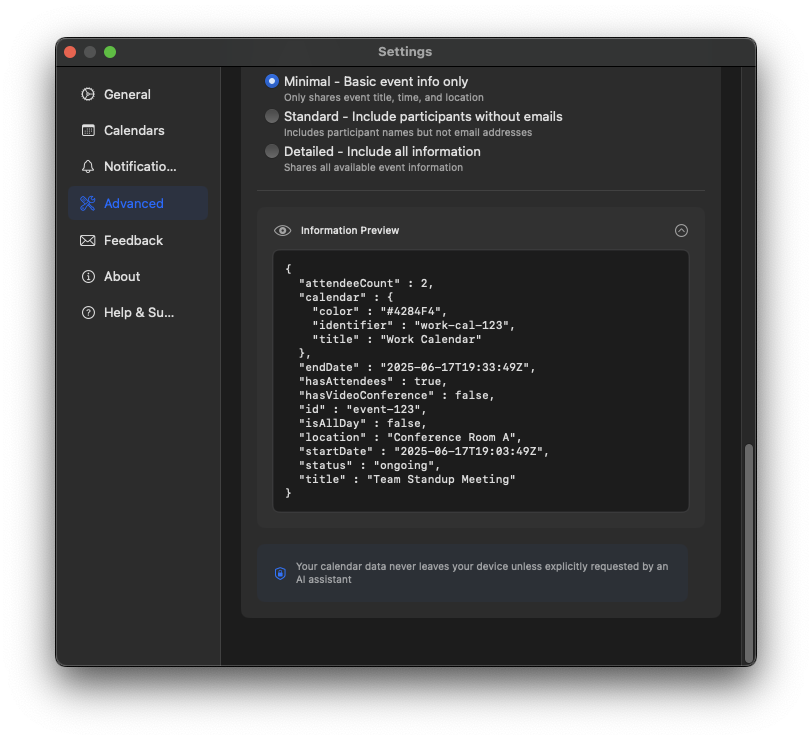
The privacy settings screen includes a live preview of a sample event so you can see how your current selection looks:
Tip:
By default, Chimr uses the “Minimal” privacy level. Choose “Strict” if you want to share as little as possible with MCP clients.
Note:
Your calendar data is only accessed when you actively use calendar-related features through an MCP client. The privacy settings control exactly which information is shared.
MCP communication happens locally on your Mac via stdio. However, depending on the MCP client you use, the retrieved calendar data (filtered by your privacy settings) may be sent to external servers for AI processing.
Usage examples
Daily planning
Ask Claude to help with your schedule:
- “What does my day look like?”
- “Do I have any conflicts today?”
- “When is my first meeting?”
- “Am I free this afternoon?”
Meeting preparation
Let Claude assist with meeting prep:
- “Who’s attending the product review?”
- “Where is my 3 PM meeting?”
- “Join the team standup”
- “What’s the video link for my next call?”
Calendar analysis
Get insights about your schedule:
- “How many meetings do I have this week?”
- “Which day is least busy?”
- “Show me all video calls tomorrow”
- “Summarize my schedule for the next 7 days”
Weekly planning
Analyze your week with the date range tool:
- “Show me all events between Monday and Friday”
- “How many hours of meetings do I have this month?”
- “Compare this week’s meeting load to last week”
- “Find days with the most free time next week”
Troubleshooting
MCP server not connecting
- Confirm the Background Service is enabled (Settings → Advanced → “Enable Background Service”). A “Background Service isn’t running” error means this step was skipped
- Ensure Chimr is installed in
/Applications/ - Verify the configuration path is correct
- Restart Claude Desktop or Claude Code after configuration changes
No events returned
- Confirm calendar permissions are granted
- Check that calendars are selected in Chimr’s settings
- Verify events exist for the requested date range
Calendar permission denied
- Open System Settings → Privacy & Security → Calendars and confirm Chimr is allowed
- If Chimr is missing from the list, launch it once and approve the calendar access prompt
- Re-enable the Background Service after granting access so the daemon picks up the new permission