Notifications
Set up floating card notifications and choose how Chimr alerts you before events.
Stay on top of your schedule with Chimr’s intelligent floating notification cards that adapt to your workflow and ensure you never miss what matters.
How Notifications Work
Chimr offers two types of notifications to suit your workflow:
Notification Types
Floating Card Alerts (Primary)
- Elegant, attention-grabbing notification cards that appear at the top of your screen
- Designed to capture your attention without blocking your entire workflow
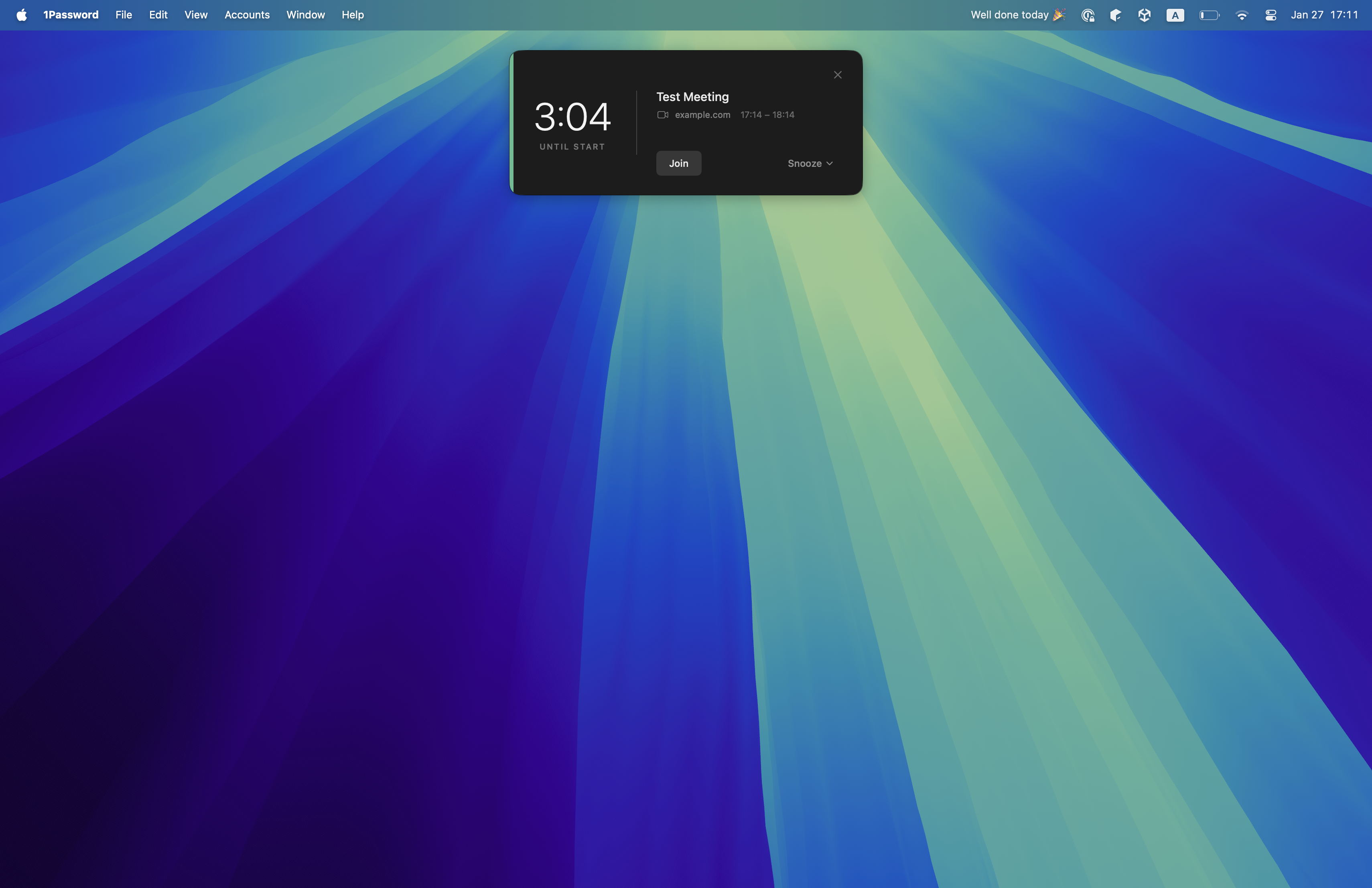
- Includes countdown timer, event details, and action buttons for joining meetings, snoozing, or dismissing
- Works across all desktop spaces and even above fullscreen applications
System Notifications (On by default)
- Standard macOS notifications that appear in Notification Center
- Remain visible in the notification history
- May sync to other Apple devices (Apple Watch, iPhone, iPad)
- Enabled by default; toggle in Settings → Notifications → “Also send to Notification Center”
Floating Card Alerts
When it’s time for your event, Chimr displays a beautiful floating notification card featuring these elements:
- Countdown timer prominently displayed with time remaining
- Event title and calendar name with color indicator
- Time details showing start and end times
- Location or video meeting link (clickable for maps/join)
- Attendee count for multi-participant events
- Action buttons for quick response
Notification Timing
Configure when you want to be alerted with these timing options:
- Disabled: No notifications
- 1 minute before: Last-minute reminder for back-to-back meetings
- 3 minutes before: Quick heads-up
- 5 minutes before: Standard preparation time
- 10 minutes before: Time to wrap up and prepare
- 15 minutes before: Early warning for important meetings
Action Buttons
Join Meeting
- Smart detection: Automatically appears for video meetings
- One-click join: Opens meeting directly in your browser
- Supported platforms include the following:
- Zoom (zoom.us)
- Google Meet (meet.google.com)
- Microsoft Teams (teams.microsoft.com)
- Cisco Webex (webex.com)
- Timing: Button appears when notification shows
Open Map
For events with a location but no video link, the card shows an Open Map button in place of Join Meeting. Clicking it opens the event’s location in Apple Maps and dismisses the card. When an event has both a video link and a location, the Join button takes priority.
Snooze Options
Flexible snooze durations to match your needs are available:
- 1 minute: Final moment delay
- 3 minutes: Quick wrap-up
- 5 minutes: Standard snooze (default)
- 10 minutes: Extended time
- 15 minutes: Maximum snooze
Dismiss
- Closes the notification permanently
- Event remains in calendar
- No further alerts for this occurrence
Details
- Opens the event details in the menu bar popover
- View full information including attendees, notes, and more
Event Filtering Options
All-Day Events
Control notifications for all-day events with these options:
- Enabled (default): Get notifications for birthdays, holidays, etc.
- Disabled: Focus only on time-specific events
- Notification time: Uses your configured notification timing, measured from the start of the day
Video Conference Only Mode
Perfect for remote workers with these features:
- When enabled: Only events with video links trigger notifications
- Smart detection: Scans URL, location, description, and title fields
- Use case: Ignore in-person meetings when working from home
Attendance-Based Filtering
Respect your RSVP decisions with these filters:
- All Events (excluding declined): Every appointment except declined (default)
- Accepted Only: Just events you’ve confirmed
- Accepted & Tentative: Include “maybe” responses
- All Events (including declined): Everything including explicit “no” responses
For advanced attendance filtering features, see Advanced Notifications.
Smart Features
Duplicate Prevention
- Each event is tracked to prevent multiple alerts
- Notifications reset if event details change
- Snooze state persists across app restarts
Context Awareness
- Meeting type detection: Different styling for video vs in-person
- Calendar color coding: Visual connection to your calendar system with colored accent bar
- Time-based messaging: “STARTING IN” countdown vs “NOW” status
Visual Design
- Frosted glass background for elegant appearance
- Smooth fade-in/out animations (0.25 seconds)
- Calendar color accent bar for quick identification
- Works on all macOS desktop spaces
Customization Tips
For Different Work Styles
Back-to-Back Meetings
- Set 1-minute notifications
- Enable quick 5-minute snooze
- Keep video-only mode off
Deep Work Sessions
- Use 15-minute advance notice
- Enable attendance filtering (Accepted Only)
- Consider video-only mode
Hybrid Workers
- Toggle video-only based on location
- Use 10-minute timing for commute prep
- Enable all-day events for office days
Notification Strategy
- Start conservative: Begin with “Accepted Only” to reduce noise
- Adjust timing: Find your ideal prep time through experimentation
- Use snooze wisely: Don’t rely on it; adjust base timing instead
- Review weekly: Check if you’re missing or overwhelmed by alerts
Troubleshooting
For notification issues, see our Troubleshooting Guide.